
Only a coach ever sets a team up on connectFIRST. Everyone else — students, parents, mentors — joins later from a link the coach sends them. If that's you, stop here and check your email instead; the rest of this page won't apply until your coach invites you.
1. Start with your email
Go to connectfirst.io and choose Request access. There's no password to create — enter your email and we send you a one-time sign-in link.
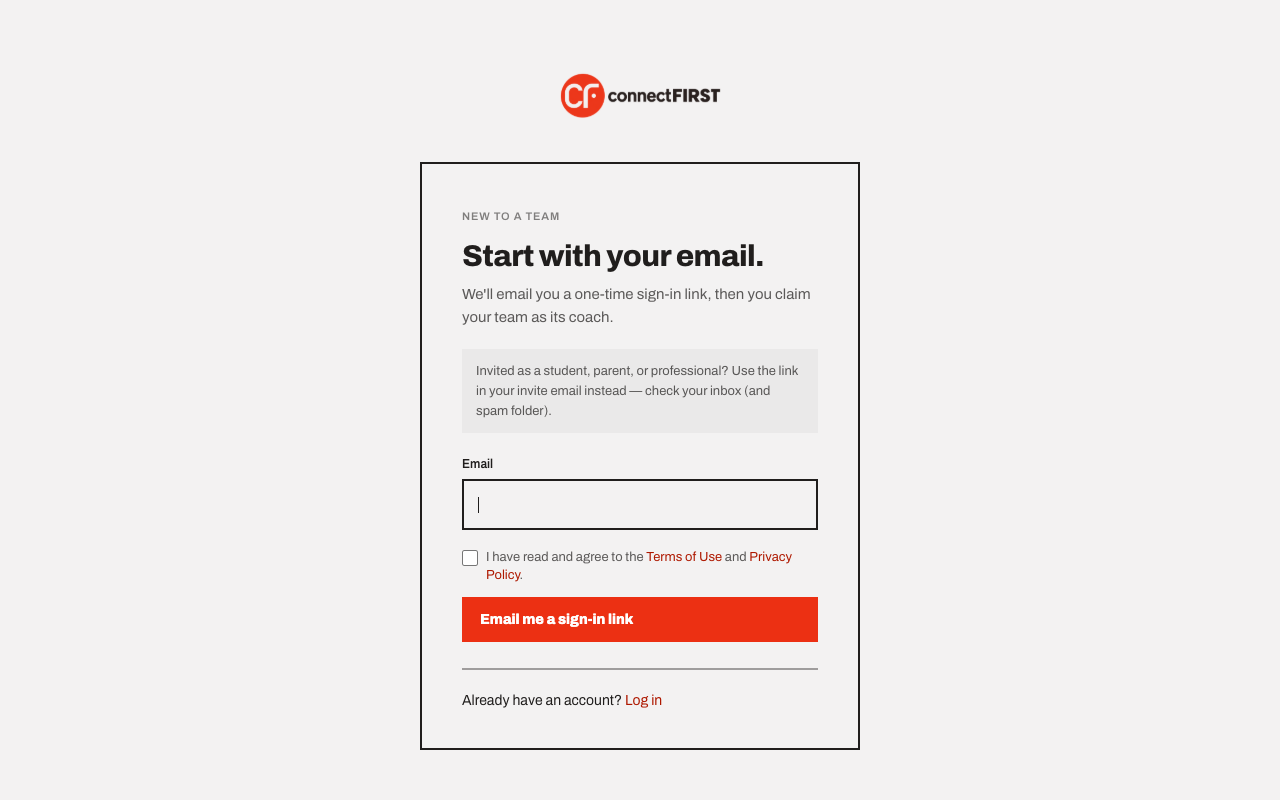
Open the email and click the link. It signs you in and takes you straight to team setup.
2. Tell us which program and team number
Pick FTC or FRC from the dropdown, then enter your team number. (FIRST LEGO League isn't supported yet.)
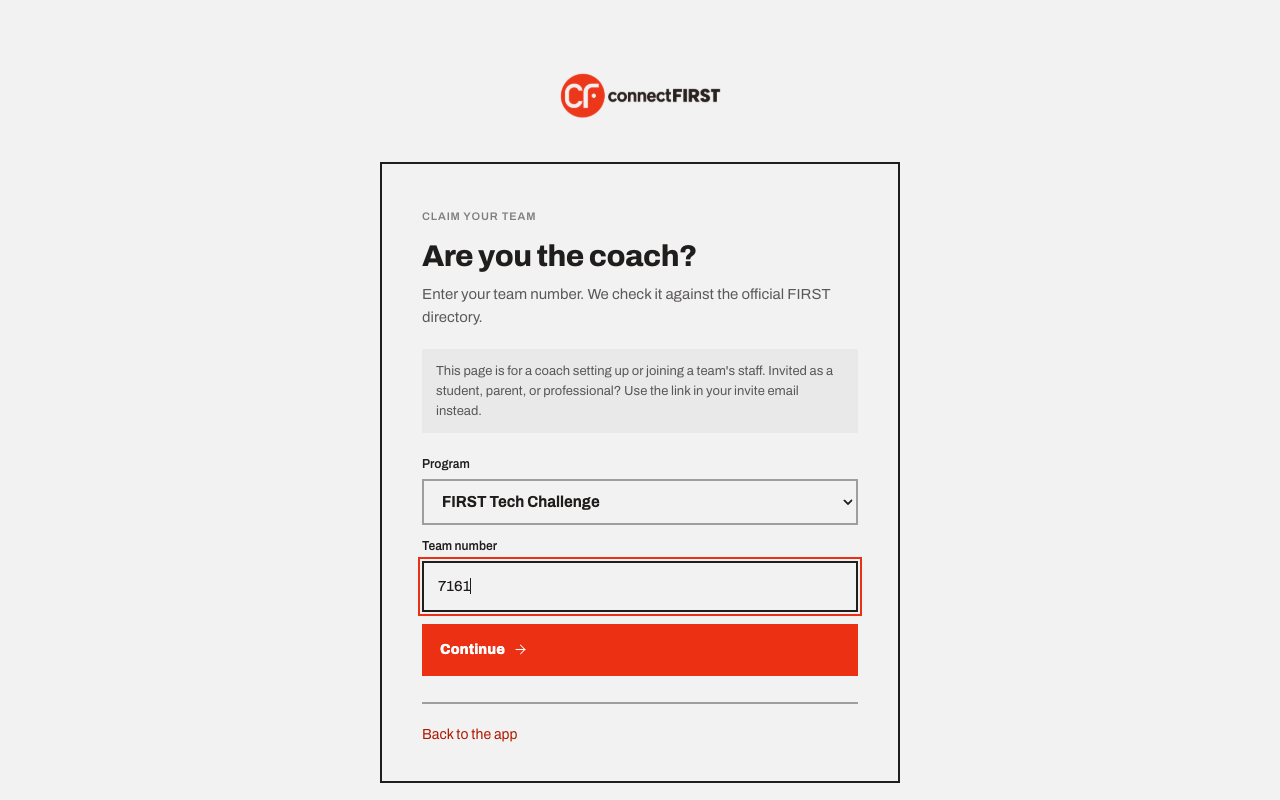
Team numbers are checked against FIRST's own team directory, so a typo gets caught immediately, and the team's name comes straight from that record — you don't type it.
3. Claim it
If nobody has set this team up yet, you'll see Claim this team — click it and you're the coach.
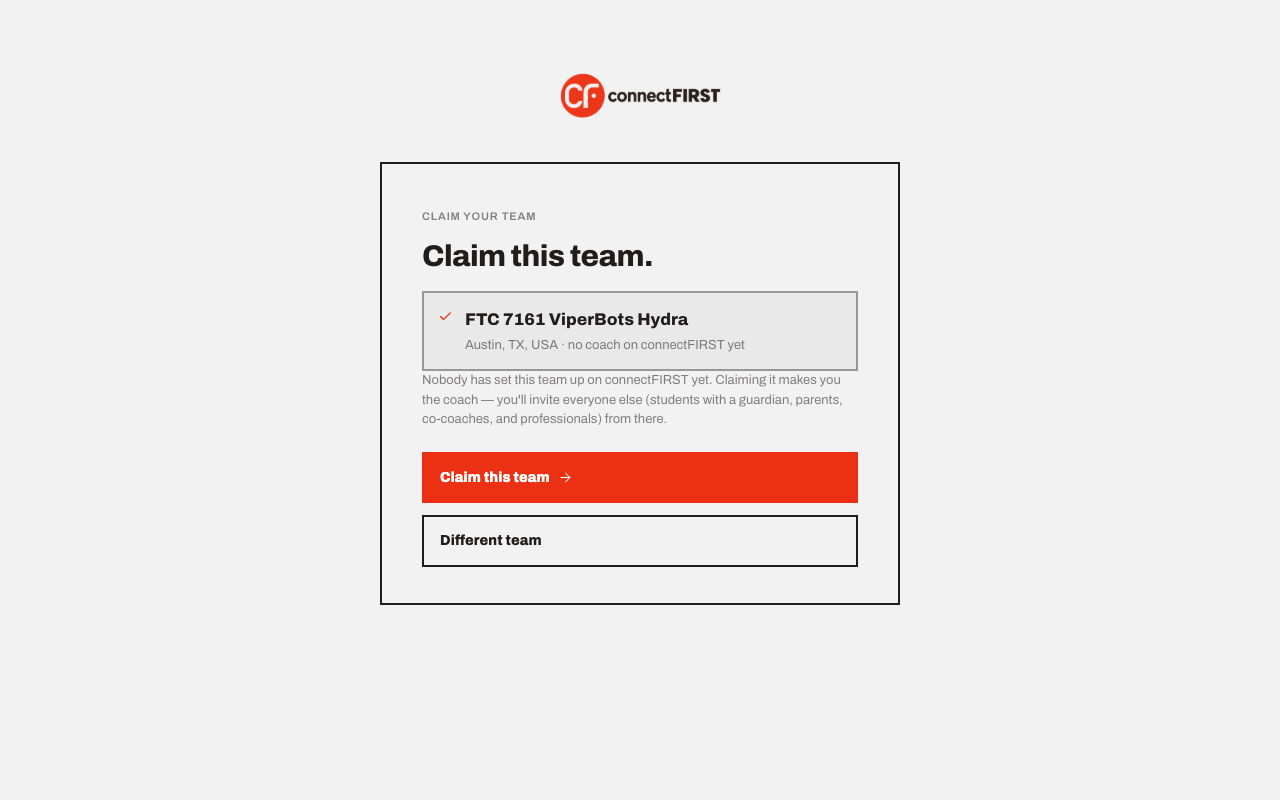
If a coach already claimed this team, you'll see that instead, along with a note to ask that coach for a co-coach invite — connectFIRST won't let a stranger take over a team that already has someone running it.
What you get next
Claiming a team makes you its coach and takes you straight to Onboarding, where you invite everyone else — students with their guardians, other parents, and co-coaches. See Invite your team for that part.
A team also starts with one coach-run channel (#general) and one
parent-facing channel (#families), so Channels isn't empty on day one.